Getting started
This chapter presents all the information the user needs to make the best use of GLOW. Section Geometry Definition provides details about the available functionalities for setting up a geometry layout and displaying it in the 3D viewer of SALOME. Section Layout Export provides information about the process that GLOW automatically performs to generate the output .dat file containing the description of the geometry layout. In both sections, the available functionalities for building and exporting a geometry layout are described with code snippets showing their usage. Images are also provided to graphically present the results when displayed in the 3D viewer of SALOME. Lastly, section Usage gives indications about how to include the functionalities of GLOW in a Python script and how to run the script in the SALOME environment.
Geometry Definition
From a topological point of view, GLOW enables the construction of geometry layouts by exploiting several entities of the GEOM module of SALOME. The full list of GEOM entities is the following:
vertex, which is a point in the XYZ space;
edge, which can be classified as segment, arc of circle or circle;
wire, a closed set of edges;
face, a 2D area made from one or two wires;
shell, made from a group of faces;
solid, a 3D object made from a group of shells;
compound, a container grouping together several GEOM entities.
GLOW relies on most of the above-mentioned topological entities to assemble
the geometry layouts and visualise them in the 3D viewer of SALOME.
The module geom_entities provides
dedicated wrapper classes acting as an interface towards the topological entities
of the GEOM module that are used in GLOW.
All the layouts that can be built in GLOW inherit from one of these wrapper
classes, which all derive from the GeomWrapper
base class.
This class has been implemented so that attribute access is delegated to the
underlying wrapped GEOM object (identified as GEOM_Object).
This design choice allow for its subclasses to behave like the GEOM_Object
they refer to. As a result, these classes can be used with any GEOM function
directly without the need for the user to provide the corresponding
GEOM_Object.
In addition, the GeomWrapper
class overloads the following arithmetic operators to easily perform Boolean
operations between instances of this class:
+(__add__) performs a fuse (union) of two shapes.
-(__sub__) performs a cut (difference) of one shape with another one.
*(__mul__) produces the common (intersection) part of two shapes.
/(__truediv__) perform a partition operation where the firstGEOM_Objectis subdivided in sub shapes by given shape objects.
//(__floordiv__) perform a partition operation where the resulting shape is the combination of all the shapes after being partitioned.
These operators call the corresponding wrapper functions of the GEOM ones
provided in the geom_interface module
that perform the Boolean operations. In addition to these functions, the module
also contains functions for building the GEOM topological entities and applying
operations to them (e.g., Euclidean transformations).
In GLOW, the base class from which all the classes identifying any layout
derive from is the Layout
class. It provides the characteristic data and behaviour (in terms of methods)
every layout object should have. In particular, instance methods for applying
Euclidean transformations, displaying and updating the corresponding
GEOM_Object are declared but left empty. Subclasses of
Layout, which represent
geometric objects describing the layout of cells and lattices, provide
dedicated implementations for these methods. The available common methods are:
rotate(). It rotates the layout by a given angle (in degrees) around the given axis, if any is provided, otherwise around the central perpendicular axis.
scale(). It scales the layout by a given factor from a given vertex or the layout’s centre, if not provided.
show(). It displays theGEOM_Objectthe instance refers to in the 3D viewer of SALOME according to specific settings.
translate(). It translates the layout in the XYZ space so that its centre coincides with the point identified by the given coordinates.
update(). It allows to update theGEOM_Objectthe instance refers to with a new one. The object to update with is given in terms of objects of theFaceandCompoundclasses.
The following classes are direct children of Layout:
Surface. It represents the base class for all the geometric shapes used in GLOW to describe the surfaces a geometry layout is made of. In geometric terms, it describes a 2D surface, and, for this reason, it also derives from theFacewrapper class. Dedicated classes to easily build specific geometric shapes (i.e. circles, rectangles and hexagons) are children of this class.
Region. It represents any 2D surface that is filled by a set of properties, like the material. This class inherits also from theFacewrapper class.
Fillable. It represents any geometry layout that can be filled with several regions, each associated to a set of properties. It is an abstract class that inherits from theCompoundwrapper class since it groups several GEOM faces together.
The building concept adopted in GLOW to describe any geometry layout of cells
and lattices is based on the layers idea. Layers are meant to represent the
layout as a hierarchical tree where the leaves are constituted by
Region instances, while the
nodes are given by instances of the Fillable
subclasses.
Each subclass of Fillable
(i.e. cells and lattices) implements the layers concept. This means that,
as an example, a cell can represent a node in the hierarchical tree of a
lattice, but the same can be said for a lattice, when included in the tree
of a cell that describes an assembly.
The Fillable
subclasses provide methods for inserting regions or other fillable objects
into the layout’s ordered layer structure. The insertion order determines each
object’s position in the hierarchical tree, where the layer index defines its
rendering priority within the layout. Consequently, objects added earlier are
placed in lower layers, while objects added later occupy progressively higher
layers. The most recently inserted elements therefore appear at the top of the
layout’s Z-ordering. In this sense, the layer abstraction provides a mean
for imposing an ordering of geometric objects along a conceptual Z-axis (even
if the resulting layout is always 2D), ensuring proper handling of overlapping
shapes based solely on insertion order.
When geometry layouts are displayed or exported, their hierarchical tree is traversed from the highest filled layer down to the lowest (i.e. from top to bottom). During this traversal, any region or fillable located in a lower layer that is overlapped by an element in a higher layer is either clipped (if partially overlapped) or removed entirely (if fully covered).
The placement of region or fillable objects within a geometry layout relies on Euclidean geometric transformations, such as translation and rotation. Assembling the entire layout resulting from collapsing the layers is based on Boolean operations (i.e. intersection, cut and partitioning).
In GLOW, the geometry layout of Fillable
objects (i.e. cells and lattices) is described in terms of:
the technological geometry, in which regions delineate areas each associated with a specific material;
the sectorised geometry, which further subdivides the regions of the technological geometry into sectors and circular areas. This refined geometry is typically used to capture flux gradients arising from geometric heterogeneities. An instance attribute in the fillable classes stores the association between the GEOM compound of edges resulting from the refinement with the type of geometry (i.e. the
GeometryType.SECTORIZED).
Fillable objects
can be displayed in the 3D viewer of SALOME in terms of one of the
aforementioned types of geometry. This is performed automatically by traversing
the hierarchical tree to collect all the corresponding geometry layouts.
GLOW allows users to display the regions of a geometry layout according to
a colour map associated to a specific property type. Given the hierarchical
structure of a fillable, its layers are traversal to collect all the
Region objects coming for
the current fillable and from those representing the nodes of the layout’s
tree.
Each Region instance associates
its GEOM face (part of the technological geometry layout) with a colour that
corresponds to the value of the property type to be visualised in the 3D viewer
of SALOME.
Users can assign values (as a string) for the type of properties available from
the PropertyType enumeration to any
Region object. These property
types include:
Information about the MATERIAL
property, in terms of its assigned values and indices for the regions, is
always included in the output file when the geometry is exported.
The names and indices of the macro regions are included only if indicated by
the user (see Layout Export).
The specific classes associated to cells and lattices, which can be used to model assemblies, and even the entire core, are the following ones:
Cell. It represents a generic cell that is not based on a pre-defined characteristic shape, which is provided at its initialisation.
CartesianCell. It represents a Cartesian cell, i.e. one having a rectangular surface as its characteristic shape.
HexCell. It represents a hexagonal cell, i.e. one having a hexagonal surface as its characteristic shape.
Lattice. It represents a generic lattice that do not follow a specific pattern.
CartesianLattice. It represents a Cartesian lattice made of cells arranged according to a rectangular grid.
HexLattice. It represents a hexagonal lattice where cells are arranged on a hexagonal grid.
All the aforementioned classes inherit from the Fillable
class, which means that they all share the same common methods devoted to the
management of the hierarchical tree, the addition of layout objects, the
application of Euclidean transformations and symmetry operations, and to
displaying the geometry layout in the 3D viewer of SALOME.
In addition, they are based on a characteristic shape (i.e. an object of the
Surface subclasses) which,
depending on the layout type, is a rectangular or a hexagonal surface, or a
generic surface derived from the borders of the layout.
In the following, the different layout objects are discussed and their public methods are detailed.
Surfaces Definition
GLOW comes with classes to quickly build specific surfaces, identified by
GEOM faces, in SALOME.
In the Object-Oriented Programming (OOP) view, the types of surface that
are available in GLOW inherit from the same superclass
Surface, which represents
a generic 2D shape in SALOME.
Subclasses of Surface
are present in GLOW to build specific-type surfaces. They are the following:
Depending on the specific type of surface, the instantiation requires to specify
the centre of the surface and its characteristic dimensions (i.e. radius for a
circle, width and height for a rectangle, the edge length for a hexagon) or the
2D shape and the centre directly (Surface
case).
Classes are implemented with default values for the characteristic dimensions.
When an object of the Surface
subclasses is instantiated, the GEOM objects that concur in the creation of
the corresponding face are automatically built. In this way, the surface can
be shown in the SALOME 3D viewer right after the initialization by means of
the method show().
The following code snippet shows how to instantiate and display the geometric surface for the hexagonal case.
from glow.geometry_layouts.geometries import Hexagon

surface = Hexagon(center=(1.0, 1.0, 0.0), edge_length=2.0)
surface.show()
Fig. 1 shows the graphical result obtained by running the above code in a Python script or directly from the Python console of SALOME.
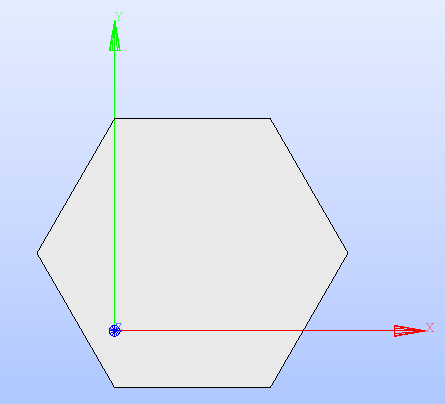
Fig. 1 Hexagon displayed in the SALOME 3D viewer.
As mentioned in Geometry Definition, Euclidean transformations are common to all
classes of GLOW that inherit from Layout.
The Surface class provides
a specific implementation for these methods that is shared by all its subclasses.
In particular, the rotate(),
translate() and
scale() methods
apply a rotation, translation and scaling, respectively, to the GEOM elements
of the Surface instance.
For the hexagonal surface declared above, the code instructions are the following:
surface.rotate(90)
surface.translate((0.0, 0.0, 0.0))
surface.scale(0.5)
surface.show()
By applying these methods, the resulting GEOM face is shown in Fig. 2, and compared with the original shape.
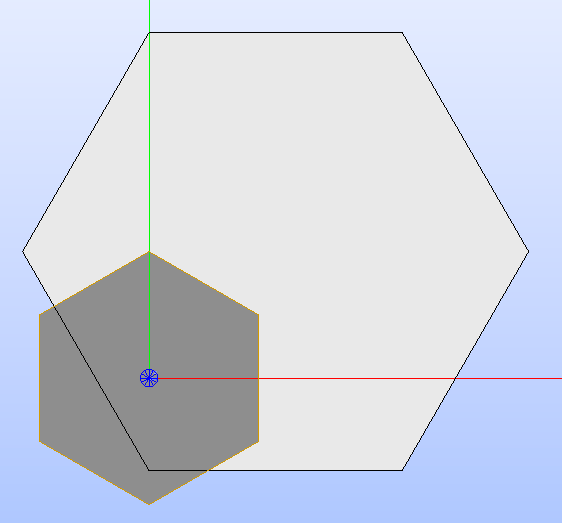
Fig. 2 Hexagon before and after applying rotation, traslation and scaling operations.
The GEOM face that is specific of the subclass of
Surface can be directly
modified within SALOME and the modified GEOM face applied to the
Surface subclass object
by calling the method update().
The implementation of this method is specific for each of the subclasses of
Surface. In general, the
method receives as parameter a GEOM face and updates the instance attributes
of Surface accordingly.
A check ensures that only GEOM faces are provided, and that the given GEOM
face corresponds to the characteristic surface the
Surface class refers to.
Region Definition
In GLOW, the geometry layouts are described as a hierarchical tree in which
the regions are the leaves.
The class that implements the region concept is Region.
This class represents any 2D shape bounded by one or two edges that is filled
by a set of properties, e.g. the material. Properties are expressed as a
dictionary of items of the PropertyType
enumeration vs the corresponding names.
As any other geometric object in GLOW, the Region
class inherits from a subclass of the GeomWrapper,
specifically the Face one.
This guarantees that Region
instances behave like the corresponding GEOM face objects when used with
GEOM functions.
As mentioned in Geometry Definition, the Region
is a subclass of Layout,
meaning it provides the implementation for all the methods handling Euclidean
transformations, displaying and updating the region.
In addition, to enable the visualisation of the regions of a layout according
to a property type colour map, Region
objects come with a dedicated color attribute and methods for setting
(set_region_color())
and resetting (reset_region_color())
the colour according to which it is displayed in the 3D viewer of SALOME.
When the region’s colour is reset, it is assigned the default RGB colour used
by SALOME, which corresponds to a light grey.
The Region class comes also
with the clone() method for
producing a copy of the instance that is completely independent from the source
instance, but has the same properties and colour.
The Boolean algebra provided by overloading the arithmetic operators of Python
in the GeomWrapper class
is complemented in the Region
class by providing specific implementations for the following operators:
+(__add__) fuses the GEOM faces of one or more regions while keeping the same properties. Both regions must have the same values for the properties.
*(__mul__) produces the common (intersection) part of the GEOM faces of two regions while keeping the same properties of the region that intersects the first one.
The instantiation of a Region
object is based on a GEOM face, but it also accepts an instance of the
Surface class as it
accesses to the wrapped GEOM face.
The following snippet shows the creation of two regions with dedicated
properties, the assignment of a colour and their visualisation in the 3D
viewer. The association of colours to regions according to the values of a
given PropertyType is performed
by means of the associate_colors_to_regions().
Fig. 3 shows the result of applying the Boolean operations,
identified by the arithmetic operators, to the two regions.
from glow import *

# Instantiation of the two regions
r1 = Region(
  Hexagon(), "R1", {PropertyType.MATERIAL: "MAT1"}
)
r2 = Region(
  Hexagon(center=(1,1,0), edge_length=2.0),
  "R2",
  {PropertyType.MATERIAL: "MAT2"}
)

# Get the common part
r3 = r2 * r1
r3.name = "R3"
# Clone the first region and set its material to be
# the one of the second region
r4 = r1.clone()
r4.name = "R4"
r4.properties[PropertyType.MATERIAL] = "MAT2"
# Fuse the second and fourth regions
r5 = r2 + r4
r5.name = "R5"
# Associate colours to the regions according to the material
regions = [r1, r2, r3, r4, r5]
associate_colors_to_regions(PropertyType.MATERIAL, regions)
for region in regions:
  set_color_face(region.geom_obj, region.color)

# Display all the regions
r1.show()
r2.show()
r3.show()
r4.show()
r5.show()
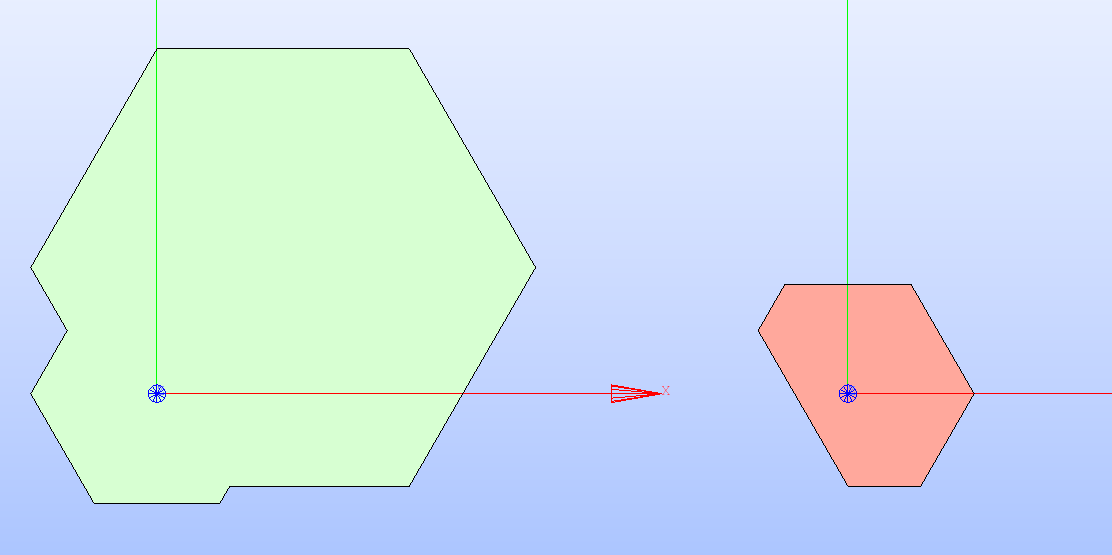
Fig. 3 Region resulting from fusing (on the left) and intersecting (on the right) two regions.
Fillable Definition
According to the hierarchical tree logic adopted in GLOW, classes that inherit
from the Fillable
class are the nodes in the tree, as they represent a container for other
nodes or leaves. The superimposition of multiple layers filled with
either Region or other
Fillable objects
recreates the hierarchical structure.
Fillable inherits
from the Compound wrapper
class, as it represents a collection of GEOM faces. In addition, it can be
used as argument of the GEOM functions directly, as it behaves like the
corresponding GEOM compound object when used with GEOM functions.
As mentioned in Geometry Definition, Fillable
is a subclass of Layout,
meaning it provides the implementation for all the methods handling Euclidean
transformations, displaying and updating the layout it refers to.
The class Fillable
declares attributes and methods common to all its subclasses.
Public methods cover the following functionalities:
adding a new region or fillable to the geometry layout;
applying a specific symmetry type to the geometry layout;
cloning the instance;
getting the compound of edges that corresponds to a given item of the
GeometryTypeenumeration;getting the
Regionobjects the geometry layout (either full or the one corresponding to a specific symmetry) is made of;printing information about a region, either given or selected from the SALOME GUI;
restoring the geometry layout;
rotating, scaling and translating the instance;
setting the properties of a region, either given or selected from the SALOME GUI;
displaying the geometry layout in the 3D viewer;
updating the
GEOM_Objectthe instance refers to;updating the hierarchical structure of the instance.
Adding a new layout
The method add()
allows for the inclusion of a new Region
or Fillable object
to the hierarchical tree that describes the technological geometry layout of
the current fillable.
Users can provide also the XYZ coordinates at which the object should be placed
at, as well as the index of the layer in which the object is added.
A translation is performed, if needed, to place the layout object so that its
CoG coincides with the given coordinates. If no position is provided, the
layout object is placed in the CoG of the current fillable.
The given layout object is stored at the last position of the layer
identified by the given index, if any is provided. This means that the object
is added as the last element in the corresponding sublist of the
glow.geometry_layouts.fillable_layouts.Fillable.layers attribute.
If no index is provided, the layout object is added to a new sublist of
layers.
This method simply updates the list of layers of the technological geometry
layout of the current fillable with the given layout object without
collapsing the layers and updating the entire GEOM compound object.
To update the hierarchical tree of the fillable by cutting overlapping layers,
the method update_hierarchical_structure()
should be called. To update and display the fillable in the 3D viewer of
SALOME, the method show()
should be run instead.
The following snippet shows the usage of the method add()
when applied to a CartesianCell
to include:
a circular
Regionobject, being a region of material;a
CartesianLatticeobject, to model an assembly of cells. For the construction of a Cartesian lattice, see Lattice Definition.
Results are shown in Fig. 4 for both a single cell and an assembly.
from glow import *

# Instantiation of a circular region, a cell and a lattice of cells
r1 = Region(
  Circle(radius=0.3), "R1", {PropertyType.MATERIAL: "MAT1"}
)
cell = CartesianCell(base_props={PropertyType.MATERIAL: "MAT2"})
cell.add(r1)
lattice = CartesianLattice()
lattice.add_rings_of_cells(cell, 3)

# Instantiate the cell representing the assembly
assembly = CartesianCell(
  width_height=tuple(i+1 for i in lattice.dimensions),
  base_props={PropertyType.MATERIAL: "MAT2"}
)
# Add the lattice to the assembly cell
assembly.add(lattice)
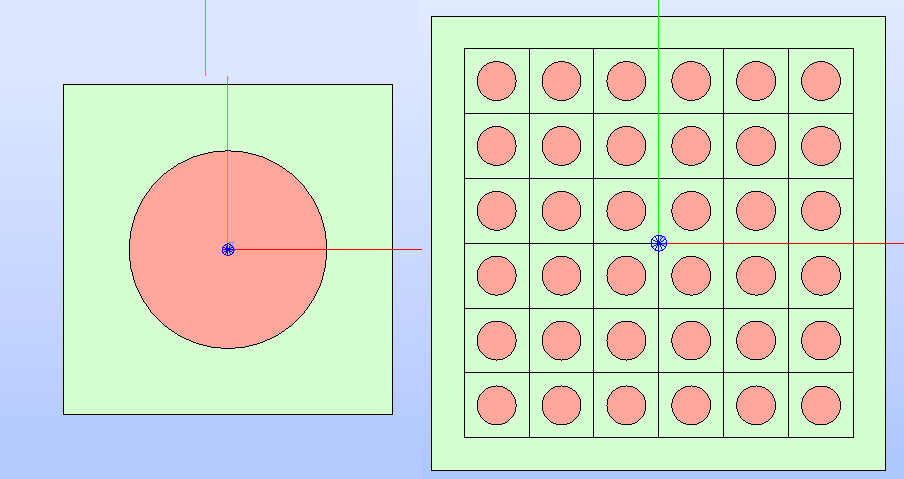
Fig. 4 Technological geometry layout after adding a single Region
(on the left) and a fillable CartesianLattice
(on the right).
Applying a symmetry
Solving the Boltzmann transport equation on a full geometry layout can be
computationally expensive, in particular if very complex.
To speed up the calculations, users can rely on cuts to extract parts out of
the existing layout, thereby isolating the minimum portion of the geometry
required to describe the entire pattern.
GLOW supports the application of specific types of symmetries to any fillable
object that inherits from Fillable.
The method apply_symmetry()
allows users to apply a symmetry type by indicating an item of the enumeration
SymmetryType.
According to the type, the 2D shape that identifies the symmetry is derived and
stored in the symmetry_map
instance attribute; this is a dictionary associating to each SymmetryType
element the corresponding Surface
instance.
The indicated symmetry type is saved in the state
attribute and applied when the current fillable is displayed in the 3D viewer
or exported to file in the TDT-compatible format.
In both cases, a common operation is performed between the Region
objects identifying the entire geometry layout and the shape of the symmetry.
Only the regions and parts of them that are in common are kept and either
displayed or exported.
The method apply_symmetry()
only supports a set of SymmetryType
elements that are common to all fillable objects. These types are the
following ones:
Subclasses of Fillable
provide the implementation to handle type-specific symmetries (see
Applying cell’s type-specific symmetries).
The following code snippet shows the application of a QUARTER
symmetry type for a Cartesian assembly. The result is shown in Fig. 5.
assembly.apply_symmetry(SymmetryType.QUARTER)
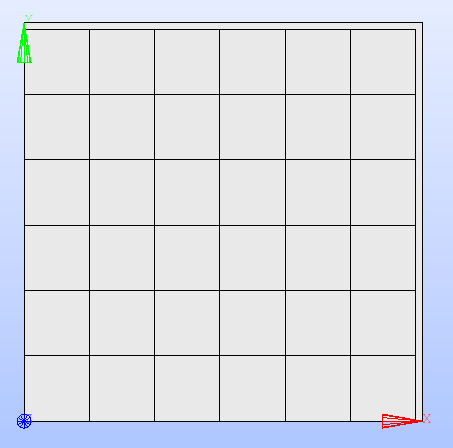
Fig. 5 Cartesian lattice after applying the QUARTER
type of symmetry.
Users should note that even if called from the SALOME Python console, the
method apply_symmetry()
does not automatically update and display the portion of the geometry layout
that corresponds to the applied symmetry. To display the new layout, the method
show() must
always be called.
In addition, the last applied symmetry is not used when the current
Fillable object
is exported. It is up to the user to indicate the symmetry type to the function
exporting the layout (see Layout Export).
Cloning the fillable instance
The Fillable class
comes with the clone()
method for producing a copy of the current instance that is completely
independent from the source instance. In Python terms, this means making a
deep copy. This allows the mutable attributes (e.g., lists and dictionaries)
of a cloned fillable to be unlinked from the source fillable. This means
that modifications to a mutable attribute in one fillable are not also
performed in the corresponding attribute of the other fillable.
Getting the geometry type edges
As mentioned in Geometry Definition, Fillable
objects are described in terms of the technological geometry, collecting the
regions each associated to a material, and the sectorised geometry, which
represents the refinement of the former geometry layout.
The Fillable class
stores the refined geometry layout as a Compound
object collecting the edges that subdivide the regions resulting by applying
a sectorisation (see Sectorization Operation).
Since a Fillable
object possesses a hierarchical structure, when displaying the root fillable
in terms of the sectorised geometry (see Displaying the geometry layout), the Compound
objects identifying the sectorised geometry of all the fillables in the
hierarchy tree of the current istance are retrieved.
The method get_geometry_map()
iterates over all the tree to collect all the sectorised geometries in a single
Compound object of edges.
This method is useful for updating the geometry_maps,
a dictionary associating for each element of the GeometryType
the corresponding Compound
object of edges. Currently, it can stores only the edges of the sectorised
geometry.
The following snippet shows how to update the compound of edges corresponding
to the SECTORIZED type
of geometry when a sectorisation has already been applied to a
Cell instance.
# Collect the refined geometry of the cells and join it with the mesh
# by performing a partition
assembly.geometry_maps[GeometryType.SECTORIZED] = \
    assembly.get_geometry_map(GeometryType.SECTORIZED) // wrap_shape(mesh)

# Show the resulting refined layout with the 'MATERIAL' colour map
assembly.show(PropertyType.MATERIAL, GeometryType.SECTORIZED)
For a deeper insight, please refer to the Cartesian Assembly With Symmetry use case in the Tutorials section (see Fig. 23 for the resulting refined geometry).
Getting the regions
In GLOW, objects of the Region
class represent the leaves of the hierarchical tree of a fillable object.
When an instance of the Fillable
subclasses is either displayed or exported, GLOW automatically retrieves the
regions of the technological geometry.
The methods get_regions()
and get_regions_with_symmetry()
serve to this purpose.
The former method iterates over all the layers of the current fillable to
collect and return all the Region
objects that describe the technological geometry layout.
The regions are collected directly from the current fillable and by
recursively calling the get_regions()
method for all the Fillable
objects in the hierarchy.
The method get_regions_with_symmetry()
similarly retrieves the regions of the technological geometry, with the
difference that only those in common with the shape of the indicated symmetry
type are returned. The underlying common operation can introduce numerical
floating-point precision errors. To limit the effect, this method includes a
boolean flag to specify whether the tolerances of the geometric elements of the
Regions objects should be limited to the 1e-6 value.
Printing regions information
When the geometry layout of a fillable is displayed in the 3D viewer of
SALOME, GLOW retrieves and adds to the SALOME study the GEOM face of
all the Region objects
that identify the technological geometry.
Users can obtain information about the Region
object that corresponds to either the given GEOM face or the one currently
selected in the 3D viewer.
The method print_region_info(),
when called directly in the Python console of SALOME, prints the following
data (see Fig. 6):
the tree representation of the hierarchical structure up to the target
Regionobject;the code to retrieve the target
Regionobject directly from the hierarchical tree of the current fillable;the values for each of the
PropertyTypeitems associated to the targetRegionobject.
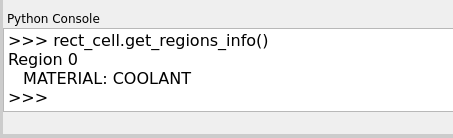
Fig. 6 Information about the Region
object that corresponds to the GEOM face of the fillable currently
selected in the 3D viewer of SALOME.
Restoring the geometry layout
There could be cases in which users need to reset the technological geometry
of a fillable by removing all the regions and clearing all the properties
(see Hexagonal Assembly With Different Cells).
The restore()
method addresses this need by clearing the layers
attribute from any Region
and Fillable object
previously stored.
In addition, any symmetry and geometry types mappings (i.e. the
symmetry_map
and the geometry_maps
attributes) are completely cleared.
A GEOM face object is built from the shape of the technological geometry of
the fillable to restore; the layers
and the regions
attributes are filled only with the Region
object built from this GEOM face. However,no properties are associated to
this new region.
Applying Euclidean transformations
As mentioned in Geometry Definition, Euclidean transformations are common to all
classes of GLOW that inherit from Layout.
The Fillable class
provides a specific implementation for these methods that is shared by all its
subclasses.
In particular, the rotate(),
translate()
and scale()
methods apply a rotation, translation and scaling, respectively, to the following
elements:
the py:class:Region<glow.geometry_layouts.layouts.Region> and py:class:Fillable<glow.geometry_layouts.fillable_layouts.Fillable> objects stored in the
layersattribute;the
GEOM_Objectthe current fillable refers to;the
Compoundobjects of thegeometry_mapsattribute;the
Faceobjects of thesymmetry_mapattribute.
Users should note that even if called from the SALOME Python console, the
methods applying the Euclidean transformations does not automatically display
the updated geometry layout. To do so, the method show()
must always be called.
Setting properties
Values for the elements of the PropertyType
enumeration are associated to the Region
objects that constitute a fillable.
In GLOW, properties are assigned directly when instantianting a
Region object, a
Cell one or any of its subclasses.
In case of a Cell, properties are
assigned to the Region object
built from the characteristic shape of the cell.
To set or update the value for a specific property type of a Region
object belonging to the hierarchical tree of the current fillable, the method
set_region_properties()
is available for all subclasses of Fillable.
This method allows users to set values for the indicated property types for
the Region object of the
fillable whose GEOM face is provided as input. If none is given, the GEOM
face currently selected in the 3D viewer is considered.
The whole hierarchical tree of the fillable is traversed to find the
Region object that matches
the GEOM face. If found, the corresponding properties
attribute is updated.
The following code snippet shows how to set values for the
MATERIAL type of property
to a circular region whose properties was not defined at its instantiation.
For the construction of a Cartesian cell, see Cell Definition.
# Build the cell's geometry layout by adding two circular regions
cell = CartesianCell(
    name="Cartesian cell", base_props={PropertyType.MATERIAL: "MAT_1"}
)
for radius, mat in zip([0.4, 0.3], ["MAT_2", "MAT_3"]):
    cell.add(
        Region(
          Circle(radius=radius), properties={PropertyType.MATERIAL: mat}
        )
    )
# Add a new circular region without any property
circle = Circle(radius=0.2)
cell.add(Region(circle))
# Set the circular region properties
cell.set_region_properties(
    {PropertyType.MATERIAL: "MAT_4"}, circle
)
# Display the cell
cell.show(PropertyType.MATERIAL)
In particular, materials are assigned to the characteristic shape of the Cartesian
cell and to the regions directly.
A new circular region is then added, and the corresponding
Circle instance is used to
identify the region of the cell whose material property needed to be assigned.
From within the SALOME 3D viewer, the region can be provided by simply
selecting the corresponding GEOM face and calling the method from the
integrated Python console.
In any case, the cell’s geometry layout with the MATERIAL
colour map is shown in Fig. 7.
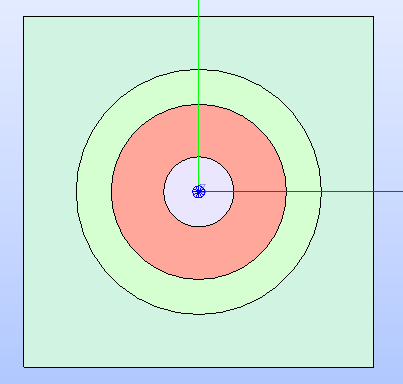
Fig. 7 Cartesian cell after setting up values for the MATERIAL
property type for each region. It is shown with a colour map highlighting
the different values assigned to the cell’s regions.
The following example shows how to set the MACRO
property to the regions of a hexagonal assembly, modelled as a HexCell
containing a HexLattice.
For details about the construction of a lattice of cells, please refer to
Lattice Definition.
from glow import *

# Build the lattice geometry layout
hex_cell = HexCell()
hex_cell.add(Region(Circle(radius=0.3)))
hex_cell.rotate(90)
lattice = HexLattice([hex_cell])
lattice.add_ring_of_cells(hex_cell, 1)
# Build the assembly so that it is slightly greater than the lattice
assembly = HexCell(side=1.1*lattice.dimensions[0])
assembly.add(Region(Hexagon(edge_length=lattice.dimensions[0])))
assembly.add(lattice)
assembly.update_hierarchical_structure()
# Assign the 'MACRO' property so that the box layer and the background has
# the same value, whereas each cell of the lattice has a different value
assembly.set_region_properties(
    {PropertyType.MACRO: "MAC_001"},
    assembly.layers[0][0]
)
# Loop through the regions of the background of the assembly
for region in assembly.layers[1]:
    assembly.set_region_properties(
        {PropertyType.MACRO: "MAC_001"}, region
    )

macro_index = 1
# Loop through the layers of the lattice, and through those of each cell
for layer in assembly.layers[2][0].layers:
    for cell in layer:
        # Increment the macro index for each cell
        macro_index += 1
        for cell_layer in cell.layers:
            for cell_region in cell_layer:
                cell_region.properties = \
                    {PropertyType.MACRO: "MAC_00" + str(macro_index)}

# Show the assembly regions according to the 'MACRO' colour map
assembly.show(PropertyType.MACRO)
The resulting geometry layout of the assembly with the MACRO
colour map is shown in Fig. 8.
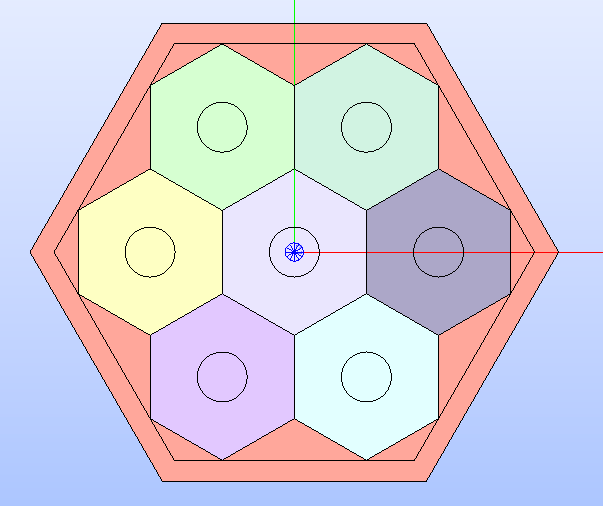
Fig. 8 Assembly after setting up the values for the MACRO
type of property. It is shown with the corresponding colour map.
Displaying the geometry layout
The geometry layout of any of the Fillable
subclasses can be displayed in the 3D viewer of SALOME by calling the method
show().
This method erases all the previously shown GEOM objects from the view, and
removes the GEOM compound that corresponds to the technological geometry
layout of the current fillable. Its hierarchical tree is then updated, if
needed, to cut any overlapping layer still not handled.
The GEOM_Object (i.e. a GEOM compound) that corresponds to the
technological geometry layout of the current fillable is added to the
SALOME study and displayed in the 3D viewer.
In addition, the method retrieves the Region
objects (which are representative of the technological geometry layout), and,
if necessary, applies the common operation with the currently active type of
symmetry.
The GEOM face of each region is added to the SALOME study and included in
the Object Browser as children of the GEOM_Object of the fillable.
If not displayed automatically, these GEOM faces can be shown all at once by
selecting the “Show Only Children” item in the contextual menu (see
Fig. 9).
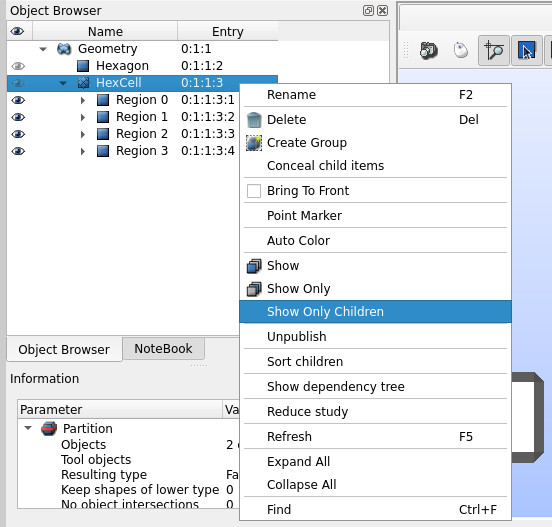
Fig. 9 How to display the regions associated to a cell in SALOME.
The show()
method displays the regions according to a colour map based on the values
assigned to each region for the provided element of the enumeration
PropertyType.
The RGB colours of the map are randomly generated and uniquely associated
to the values of the indicated element of PropertyType
that each region stores in the properties
attribute.
If no property type is provided, the regions are displayed with a default colour.
By default, the show()
method displays the regions of the technological geometry. If a different item
of the GeometryType enumeration is
given (i.e. the SECTORIZED
one), the method also shows the Compound
of edges of the refined geometry.
This Compound object is
retrieved from the refined geometry layouts of all the fillable objects in
the hierarchical tree of the current one, extracting the common part with the
shape of the symmetry currently applied, if needed.
The resulting GEOM compound is added to the SALOM study, and, in the Object
Browser, appears as a child of the GEOM_Object of the fillable.
The following code snippet shows how to display the refined geometry layout of
a HexCell instance by applying
a colour map according to the MATERIAL
property type. Fig. 10 presents the resulting geometry layout as
displayed in the 3D viewer of SALOME.
hex_cell.show(PropertyType.MATERIAL, GeometryType.SECTORIZED)
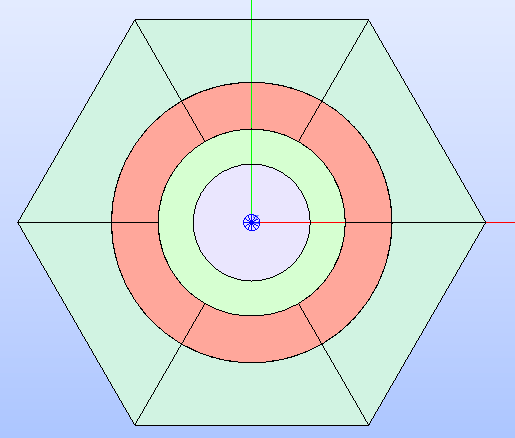
Fig. 10 Refined geometry layout of a hexagonal cell. Regions are displayed according
to the MATERIAL colour
map.
By default, the show()
method automatically displays the GEOM faces of all the
Region objects of the fillable.
If specified differently by providing a boolean flag with value False, this
method only adds the GEOM faces for the regions and the GEOM compound of
edges of the refined geometry layout to the SALOME study without triggering
their visualisation in the 3D viewer.
This setting can be used to avoid overheads when geometry layouts characterised
by many GEOM face objects are shown in SALOME.
Updating the GEOM_Object
The method update()
allows users to update the GEOM_Object of the Fillable
instance with another GEOM_Object provided in terms of a
Compound or a
Face object.
This method also updates the centre of the layout (i.e. the
o attribute) and
any Compound object of edges
associated to a GeometryType item.
Users should note that this method does not update the regions and fillables
stored in the layers
attribute accordingly with the updated GEOM_Object.
Updating the hierarchical tree
As described in Geometry Definition, the building concept of GLOW is based on the
layers logic to model the hierarchical tree of a fillable.
Whenever objects of the Fillable
subclasses are displayed in the 3D viewer of SALOME or exported to file in
the TDT-compatible format, the method update_hierarchical_structure()
is automatically called.
This method traverses the entire hierarchical tree in reverse order to handle
any region and fillable of a layer that is overlapped by a layer in a higher
position along the conceptual Z-axis brought by the layers
attribute.
During this traversal, any region or fillable that is overlapped by a higher
layer is either clipped (if partially overlapped) or removed entirely from the
hierarchical tree (if fully covered).
This operation is skipped and the method exits without changes if there is no
need to update the layers of the fillable.
The operation of assembling all the layers requires that each node in the
hierarchical tree is up-to-date. This means that each Fillable
object found in the layers
attribute is further processed by recursively calling this method to update its
hierarchical structure.
Lastly, the GEOM_Object representative of the current fillable is updated
by collecting in a GEOM compound all the Region
objects retrieved from each layer.
To simplify the hierarchical tree, a True value can be provided to the
update_hierarchical_structure()
method. If so, the hierarchical tree of the fillable is collapsed and its
layers reduced to a sigle layer collecting all the Region
objects of the fillable.
Users should note that any previously stored Fillable
object is completely removed from the hierarchical tree and substituted with its
Region objects.
Cell Definition
GLOW comes with classes to build cells having a generic, a hexagonal or a
rectangular characteristic surface.
According to the hierarchical tree logic, cells are the nodes as they inherit
from the Fillable
abstract class.
The module glow.geometry_layouts.cells provides the base class
Cell, which represents a cell
characterised by a generic 2D shape, described from a
Surface instance, or any
of its subclasses.
The subclasses of Cell are the
following ones:
class
CartesianCellfor representing rectangular cells.class
HexCellfor representing hexagonal cells.
When instantiating any of the aforementioned subclasses, the corresponding
instance of the Surface
subclasses is built from the characteristic dimensions.
For the generic Cell class, the
initialisation is done from any 2D shape.
The following code snippet shows how to instantiate the different type of cells
available in GLOW.
from glow.geometry_layouts.cells import CartesianCell, Cell, HexCell

rect_cell = CartesianCell(
    center=(0.0, 0.0, 0.0),
    width_height=(1.0, 2.0),
    rounded_corners=[(1, 0.1), (3, 0.1)],
    base_props={PropertyType.MATERIAL: "MAT"},
    name='RectCell'
)

hex_cell = HexCell(
    center=(0.0, 0.0, 0.0),
    side=2.0,
    base_props={PropertyType.MATERIAL: "MAT"},
    name='HexCell'
)

gnrc_cell = Cell(
  shape=surface,
  base_props={PropertyType.MATERIAL: "MAT"}
)
For a Cartesian cell, the rounded_corners parameter indicates the index
of the corner of the rectangle and the associated curvature radius to generate
a rectangle with rounded corners.
The base_props parameter allows to indicate the name of the properties that
are associated to the characteristic shape of the cell. After the initialisation,
the hierarchical tree of the cell contains a single Region
object made from the GEOM face of the characteristic shape and the specified
properties.
The classes for representing a cell in a geometry layout, besides inheriting
attributes and methods from the Fillable
superclass, declare a public method for handling the sectorisation operation.
In addition, each provides its own implementation for deriving the shape of the
symmetry according to the cell-specific symmetry types.
Sectorization Operation
As mentioned in Geometry Definition, the geometry layout of a Fillable,
and, consequently, any Cell
and its subclasses instances, can be refined by subdividing the regions of
the technological geometry into a specified number of sectors.
Cell and its subclasses share
the same internal implementation for handling the sectorisation operation by
deriving the GEOM compound of edges identifying the sectors (see
sectorize()).
In addition, the sectorize()
method for the CartesianCell
class has the option of applying the windmill sectorization to the region
farthest from the cell’s centre, provided that the region is subdivided into
eight or sixteen sectors.
The sectorisation operation is configured by providing two lists to the
sectorize() method, one
containing the number of sectors into which each cell-centred region has to be
split, the other the angle (in degrees) the subdivision should start from wrt
the X-axis. The order of the elements in the two lists follows the outwards
direction from the cell’s centre.
The sectorize()
method for a Cartesian cell also accepts the windmill parameter, a Boolean
flag indicating whether the wings of the windmill sectorization are derived.
The GEOM edges describing the sectorization are built so that they propagate
radially from the centre of the cell.
The result of the intersection between each region and the subdivision edges
is collected in a Compound
object and stored as entry in the geometry_maps
dictionary for the SECTORIZED
type of geometry.
The following code snippet shows how to apply a sectorization, with windmill
option enabled, for a Cartesian cell having two cell-centred circles.
Fig. 11 shows the result after applying the indicated sectorization.
rect_cell.sectorize([1, 4, 8], [0, 45, 22.5], windmill=True)
rect_cell.show(GeometryType.SECTORIZED)
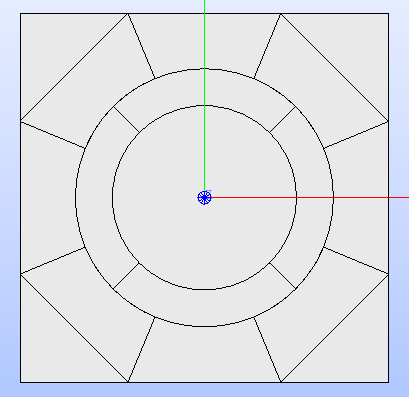
Fig. 11 Cartesian cell after applying the sectorization operation.
Applying cell’s type-specific symmetries
As mentioned in the Applying a symmetry section, the method apply_symmetry
by default supports the construction of the shape of the symmetry associated to
the FULL, HALF
and QUARTER types.
In addition to the aforementioned common symmetry types, the
CartesianCell class
supports the following ones:
The HexCell class, besides the
common symmetry types, supports also the following ones:
Independently from the cell type, the result is the construction of a 2D shape
used to derive the Region
objects in common with the shape of the symmetry. For more details, please
refer to the Applying a symmetry section.
Fig. 5 and Fig. 12 show the results of applying
a QUARTER and a
TWELFTH symmetry to a
Cartesian and a hexagonal assembly, respectively.
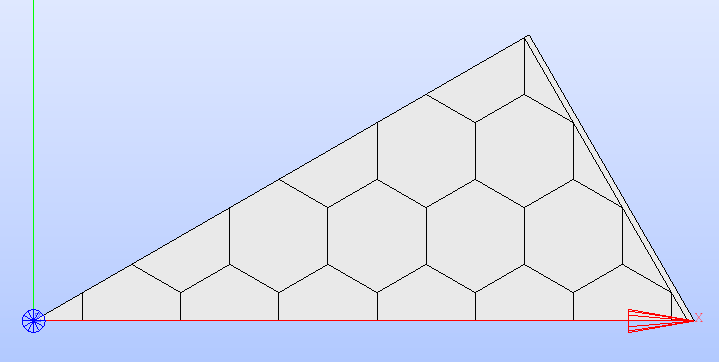
Fig. 12 Hexagonal assembly after applying the TWELFTH
type of symmetry.
Lattice Definition
GLOW comes with classes to build lattices according to a generic, a Cartesian
and a hexagonal pattern of the cells.
According to the hierarchical tree logic, cells are the nodes as they inherit
from the Fillable
abstract class.
The module glow.geometry_layouts.lattices provides the base class
Lattice to represent any
lattice made of cells without the need to follow a specific pattern. For this
reason, this class can be used to model a portion of a generic lattice assembled
by positioning the cells at the indicated coordinates.
Subclasses of Lattice present
type-specific patterns:
class
CartesianLatticefor representing a Cartesian pattern of cells.class
HexLatticefor representing a hexagonal pattern of cells.
The Lattice class and its
subclasses can be instantiated either with or without providing a list of
Cell objects.
The method add()
inherited from the Fillable
superclass can be used to include the cells. Dedicated methods for adding one
or more rings of cells at once are present as well (see Adding cell(s)).
The following code snippet shows how to instantiate the different type of lattice available in GLOW.
from glow.geometry_layouts.cells import CartesianCell, HexCell
from glow.geometry_layouts.lattices import CartesianLattice, Lattice, HexLattice

hex_cell = HexCell()
rect_cell = CartesianCell()

# Lattice instantiation by providing all the Cartesian cells at once
cart_cells = []
cells_centres = [
    (0.5, 0.5, 0.0), (-0.5, 0.5, 0.0), (-0.5, -0.5, 0.0), (0.5, -0.5, 0.0)
]
for xyz in cells_centres:
    # Clone and translate the original cell
    cell = rect_cell.clone()
    cell.translate(xyz)
    cart_cells.append(cell)
cart_lattice = Lattice(
    cells=cart_cells,
    center=(0.0, 0.0, 0.0),
    name="Cartesian Lattice"
)
# Lattice instantiation without any cell
lattice = CartesianLattice()
# Lattice instantiation with a hexagonal central cell
hex_lattice = HexLattice([hex_cell])
The three examples show different instantiations; in particular, we have:
a generic lattice built from a list of cells that are properly translated to recreate a 2x2 pattern;
a Cartesian lattice built without any cell;
a hexagonal lattice built from a single cell positioned in the centre of the lattice.
When a list of instances of the Cell
class, or its subclasses, is provided at the instantiation of the lattice, the
layers
attribute is filled with the list of the given cells, meaning that these cells
occupy the bottom layer of the hierarchical tree of the lattice.
A Surface instance is
then initialised with the 2D shape built from the boundaries of the compound of
the provided cells. Whenever the layout of the lattice changes (e.g., when new
cells are added) the characteristic shape that encloses the lattice is updated.
The characteristic shape for the HexLattice
class is a X-oriented hexagon. This means that cells should be rotated by 90°
before being provided when instantiating the lattice or when adding rings of
cells. After finalising the layout, the lattice can still be rotated by any
angle.
The CartesianLattice
and the HexLattice
classes, besides inheriting attributes and methods from the
Fillable superclass,
declare two additional public methods for handling the inclusion of one or more
rings of the same cell around the centre of the lattice at once.
Adding cell(s)
A lattice geometry layout can be modelled from a Lattice
instance (or one of its subclasses) by providing a list of Cell
objects when instantianting the lattice.
In addition to this approach, it is often useful to construct a lattice by adding
a single cell, one or more rings of cells. The method add()
can be used to include cells one-by-one by providing the XYZ coordinates at which
they have to be positioned. For details about this method, please refer to Adding a new layout.
In addition to this method that is common to all fillables, the
CartesianLattice
and the HexLattice
classes provide their own implementation for adding one or more rings of cells.
Lattices made by Cartesian or hexagonal patterns of cells can be considered as
consisting of several rings, each occupied by an increasing number of cells as
the ring index increases.
The method add_ring_of_cells()
for a CartesianLattice
iteratively adds the provided Cell
object at specific construction points on the borders of a rectangle whose
dimensions are determined by the given ring index.
The method add_ring_of_cells()
for a HexLattice works
similarly, but considering a hexagon as the reference figure for placing the
cells.
Both methods accept as third parameter the index of the layer to which the ring
of cells is added; if none is provided, the cells are added to a new layer.
The method add_rings_of_cells()
for a CartesianLattice
and add_rings_of_cells()
for a HexLattice allow
users to add an indicated number of rings of cells at once starting from the
given ring index.
Optionally, users can specify the index of the layer to which the rings of cells
are added; if none is provided, the cells are added to a new layer.
The following code snippet shows the different ways to add cells to a lattice.
# Declare the hexagonal cell rotated by 90° to satisfy the fact that a
# 'HexLattice' is X-oriented by default
cell = HexCell()
cell.rotate(90)
# Instantiate the lattice with a central cell
lattice = HexLattice([cell])
# Add the rings of cells
lattice.add_ring_of_cells(cell, 1)
lattice.add_rings_of_cells(cell, 2, 2)
lattice.add(cell, (1.5, 1.5, 0.0))
lattice.show()
The lattice’s geometry layout resulting from adding hexagonal cells using the three methods is shown in Fig. 13.
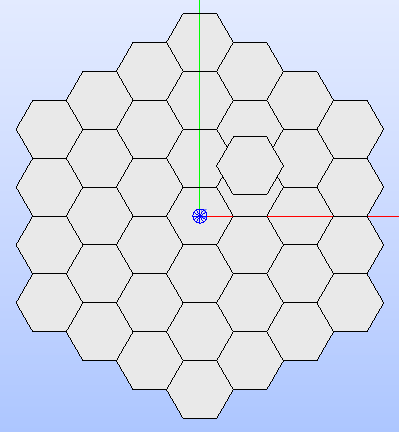
Fig. 13 Hexagonal lattice built by applying the three methods for adding cells.
Applying lattice’s type-specific symmetries
In addition to the common symmetry types that can be applied to a generic
layout (see Applying a symmetry section), the CartesianLattice
and the HexLattice
classes supports the same symmetry types of the CartesianCell
and HexCell classes
respectively, as based on the same characteristic shape. See Applying cell’s type-specific symmetries
for the supported types.
Independently from the lattice type, the result is the construction of a 2D
shape used to derive the Region
objects in common with the shape of the symmetry. For more details, please
refer to the Applying a symmetry section.
Fig. 14 shows the results of applying a SIXTH
symmetry to a hexagonal lattice.
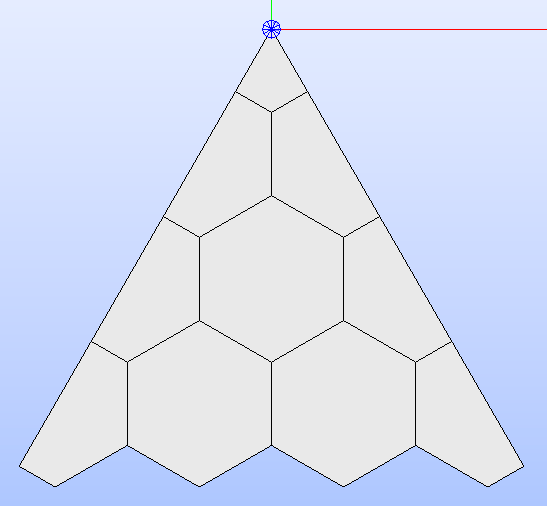
Fig. 14 Hexagonal lattice after applying the SIXTH
type of symmetry.
Layout Export
The aim of GLOW is to provide DRAGON5 users with a tool that allows
them to create geometry layouts not available natively and export the surface
geometry representation to an output .dat file having a format similar to
the one used by the APOLLO2 TDT solver.
The .dat file can be used directly as input to the DRAGON5 SALT: module
for producing tracking information in the DRAGON5 format.
To meet this requirement, GLOW comes with a functionality for extracting the
necessary information about the geometry and generate the output file in the
required format.
Once the geometry layout has been created, users can run the export process by
calling the function export_layout_to_tdt().
This function first analyses the provided instance of the
Fillable subclasses
to extract information about the characteristics of its geometry and the
properties associated to its regions. A TDT file, whose name is provided as
second parameter, is generated, collecting all this information.
Users can indicate which information about the geometry needs to be extracted
from the layout and the tracking setup on the basis of specific configuration
options defined in the dataclass TdtSetup, whose
instance is provided to the export_layout_to_tdt()
function.
The available settings are the following ones:
the geometry type of the layout (either the technological or the sectorised geometry), as item of the enumeration
GeometryType. A value different from the one used to display the layout in the SALOME 3D viewer can be specified.the type of properties, as elements of the
PropertyTypeenumeration, associated to the regions of the layout that should be included in the .dat file.the value for the albedo applied to the BCs of the layout. This information indicates how much reflective the BCs are, i.e. the ratio of exiting to entering neutrons. This attribute can assume values between 0.0 (no reflection) and 1.0 (full reflection), with the latter case indicating the
ALBE 1.0BC used in DRAGON5 with a uniform tracking (i.e. with theISOTROPIC). If not specified, the default value corresponding to the layout type is adopted, i.e. 1.0 for theISOTROPICcase and 0.0 for the other types.the value for the typgeo index of the .dat file. This value identifies the type of layout (in terms of symmetry and BCs) and of tracking (i.e. TSPC or TISO) to apply. Values are expressed in terms of elements of the
LayoutGeometryTypeenumeration, and they match the ones expected by theSALT:module of DRAGON5.the type of symmetry to consider, as element of the enumeration
SymmetryType. The indicated symmetry type is applied, if the corresponding shape of the symmetry has already been built by calling theapply_symmetry()method.
The function export_layout_to_tdt()
also supports the possibility to export the surface geometry representation for
a custom portion of the provided Fillable
instance. This portion, which is GEOM compound, is provided as last argument
to the export function.
When providing a portion of the layout, users should note that the configuration
values provided in the TdtSetup instance must
match with the indicated GEOM compound object. If values that do not match
with the shape of the compound are provided, the validity of the results in
DRAGON5 cannot be assured.
The analysis step involves the extraction of the geometric data, that is needed
for the generation of the output TDT file, from the layout.
The first step consists in determining the Region
objects that correspond to the GEOM faces the layout to export can be subdivided
into. A traslation of layout, and of its regions, is performed, if needed, so
that its lower-left corner coincides with the origin of the XYZ space as this
is needed by DRAGON5 when processing the geometry layout with the SALT:
module.
In addition, if the SECTORIZED
geometry type is indicated, the Region
objects are partitioned according to the edges of the refined geometry.
For each Region object, a
FaceData object is built and associated
with the property types (PropertyType)
for which the layout is analysed. In addition, an index is assigned to ensure
their identification.
For each GEOM edge object of the layout to export, an EdgeData
instance is built storing the FaceData
objects of the regions that share it. This means that each edge, identified
with another index, has one or two regions associated with it.
Edges that are shared by two adjacent regions are internal edges, while
those associated with only one region are border edges.
Lastly, glow.generator.export_data.BoundaryData instances are built
for each border of the layout to export. These instances store the indices of
the corresponding border edges, as well as the type of boundary (as item of
the BoundaryType enumeration) and
its geometric data, both determined on the basis of the indicated
LayoutGeometryType and the
applied SymmetryType.
Table 1 provides the association between
LayoutGeometryType and
BoundaryType for the hexagonal
and Cartesian type of layouts identified by the corresponding cell and lattice
classes. In case of generic cells and lattices, all the LayoutGeometryType
values are valid.
The first group of columns LayoutGeometryType-BoundaryType indicates the
values for which a uniform tracking (i.e. TISO) should be performed in
SALT:; the second group refers to values which correspond to a cyclic
tracking (i.e. TSPC).
An ISOTROPIC type
does not correspond to any BC, whereas those values that show two types of
BCs correspond to a geometry layout in which a ROTATION
is applied on the internal boundaries and a TRANSLATION
on the external ones (see Fig. 15).
LayoutType |
SymmetryType |
LayoutGeometryType |
BoundaryType |
LayoutGeometryType |
BoundaryType |
|---|---|---|---|---|---|
HEX |
FULL |
ISOTROPIC |
/ |
HEXAGON_TRAN |
TRANSLATION |
THIRD |
ROTATION |
TRANSLATION/ROTATION |
R120 |
TRANSLATION/ROTATION |
|
SIXTH |
SYMMETRIES_TWO |
AXIAL_SYMMETRY |
SA60 |
AXIAL_SYMMETRY |
|
ROTATION |
TRANSLATION/ROTATION |
RA60 |
TRANSLATION/ROTATION |
||
TWELFTH |
SYMMETRIES_TWO |
AXIAL_SYMMETRY |
S30 |
AXIAL_SYMMETRY |
|
RECT |
FULL |
ISOTROPIC |
/ |
RECTANGLE_TRAN |
TRANSLATION |
RECTANGLE_SYM |
AXIAL_SYMMETRY |
||||
HALF |
SYMMETRIES_TWO |
AXIAL_SYMMETRY |
RECTANGLE_SYM |
AXIAL_SYMMETRY |
|
DIAG |
SYMMETRIES_TWO |
AXIAL_SYMMETRY |
RECTANGLE_EIGHTH |
AXIAL_SYMMETRY |
|
QUARTER |
SYMMETRIES_TWO |
AXIAL_SYMMETRY |
RECTANGLE_SYM |
AXIAL_SYMMETRY |
|
EIGHTH |
SYMMETRIES_TWO |
AXIAL_SYMMETRY |
RECTANGLE_EIGHTH |
AXIAL_SYMMETRY |
The items of the enumeration LayoutGeometryType
identify the different values for the typgeo index in the .dat output file.
The SALT: module of DRAGON5 associates one of the two types of tracking
according to the typgeo value [3]:
values of 0, 1 and 2 are associated with a TISO tracking type, which produces non-cycling tracks distributed uniformally over the domain.
values greater that 2 are associated with a TSPC tracking type, which indicates a cyclic tracking over a closed domain.
The meaning of each items of the enumeration LayoutGeometryType
is detailed in the following:
ISOTROPICto represent a layout having an isotropic reflection on its boundaries. It is associated with a TISO tracking.
SYMMETRIES_TWOto represent a layout having symmetries of two axis of anglepi/n( \(n>0\)) on its boundaries. It is associated with a TISO tracking.
ROTATIONto represent a layout with a rotation of angle2*pi/n(\(n>1\)) for its boundaries. It is associated with a TISO tracking.
RECTANGLE_TRANto represent a Cartesian layout having a translation BC on its boundaries. It is associated with a TSPC tracking.
RECTANGLE_SYMto represent a full, half, or quarter symmetry for a Cartesian layout. It is associated with a TSPC tracking.
RECTANGLE_EIGHTto represent a layout with an eighth symmetry. It is associated with a TSPC tracking.
SA60to represent a layout with a sixth symmetry. It is associated with a TSPC tracking.
HEXAGON_TRANto represent a full hexagonal layout having a translation BC on its boundaries. It is associated with a TSPC tracking.
RA60to represent a layout with a sixth symmetry with both rotation and translation BCs on its boundaries. It is associated with a TSPC tracking.
R120to represent a layout with an third symmetry with both rotation and translation BCs on its boundaries. It is associated with a TSPC tracking.
S30to represent a layout with a twelfth symmetry. It is associated with a TSPC tracking.
The different values of BCs that are automatically applied by GLOW to the
boundaries of the geometry layout to export are identified by the items of the
enumeration BoundaryType. Their
meaning and usage is the same as specified in [3]:
VOID, indicating that boundaries have zero re-entrant angular flux;
REFL, indicating a reflective boundary condition;
TRANSLATION, indicating that the analysed layout is connected to another one for all its boundaries, thus treating an infinite geometry with translation symmetry;
ROTATION, indicating a rotation symmetry;
AXIAL_SYMMETRY, indicating a reflection symmetry;
CENTRAL_SYMMETRY, indicating a mirror reflective boundary condition.
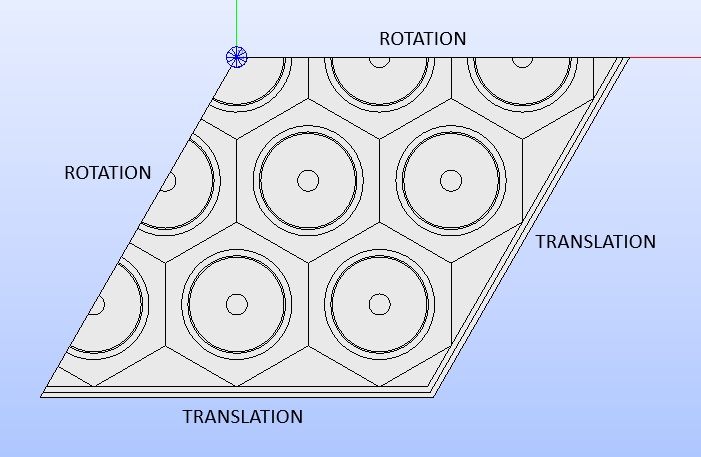
Fig. 15 Showing to which borders the ROTATION
and TRANSLATION BC
types are assigned to (THIRD
symmetry case).
Given all the geometric data extracted from the layout, the output file is generated. Its structure consists of five sections, that are:
the header section, providing information about the type of geometry (typgeo value), the number of folds (nbfold value), which is consistent with the typgeo, the number of nodes (i.e. the regions), the number of elements (i.e. the edges).
the regions section, providing a list of indices attributed to the regions in the lattice. It also contains the definition of the macros to indicate subvolumes of the assembly. Names and indices of the macros match the assignment of the corresponding
MACROtype of property to the regions.the edges section, providing the geometric information about all the edges in the geometry layout, as well as the indices of the regions they belong to.
the boundary conditions section, providing information about the BC types and the indices of the edges belonging to each boundary.
the material section, indicating the index of each value of the
MATERIALtype of property. The order in which values are present matches the indices of the regions.
Usage
GLOW can be used directly by writing down a Python script where the single needed modules can be imported; alternatively, users can import all the modules at once to have them available by setting the following import instruction:
from glow import *
Given that, classes and methods are directly accessible and users can exploit them to:
assemble the geometry layout;
assign properties to regions;
visualise the result in the SALOME 3D viewer;
export the geometry layout to a .dat file in the TDT-compatible format.
To run this script, users can:
provide it as argument when running SALOME;
salome my_script.pyload it directly from within the SALOME application.
In addition, since SALOME comes with an embedded Python console, users can import the GLOW modules and exploit its functionalities directly.
The built script can also be executed in batch mode, i.e. without running the SALOME GUI, by providing it as argument when running SALOME shell environment:
salome shell my_script.py
To see some of the GLOW functionalities in action, please refer to the script
files present in the tutorials folder and described in the Tutorials
section.
These examples are intended to show a few case studies and how they are managed
in GLOW.
For further information about the available classes and methods, please refer
to the API guide section.